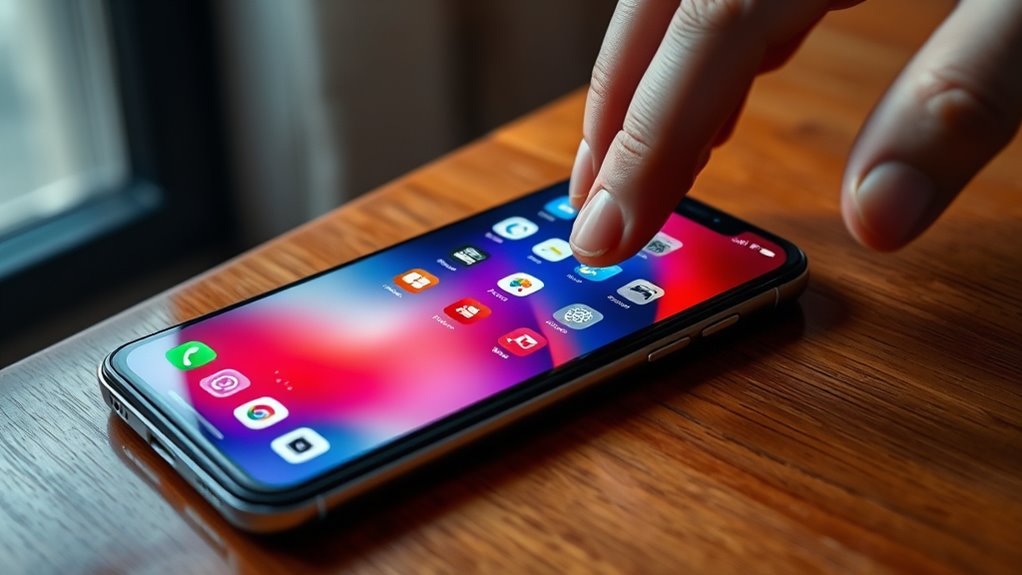

Discover hidden smartphone tricks to boost your efficiency and simplify navigation. Use gestures like swipe up to access apps, pinch to zoom, or double-tap to wake your screen. Customize shortcuts by holding icons for quick actions, making routines faster. Navigate seamlessly with swipe gestures replacing buttons, especially on bezel-less devices. Mastering these hidden features can transform your experience—stick around to uncover even more ways to optimize your device effortlessly.
Key Takeaways
- Learn and customize gesture controls like swipe, pinch, and double-tap to navigate your device faster.
- Use app shortcuts by long-pressing icons for quick access to specific functions.
- Enable and practice navigation gestures to replace traditional buttons for a sleek, bezel-less interface.
- Access hidden features through quick gestures or shortcuts, such as instant screenshot or app switching.
- Adjust device settings to optimize gesture and shortcut functionalities for a personalized, efficient experience.
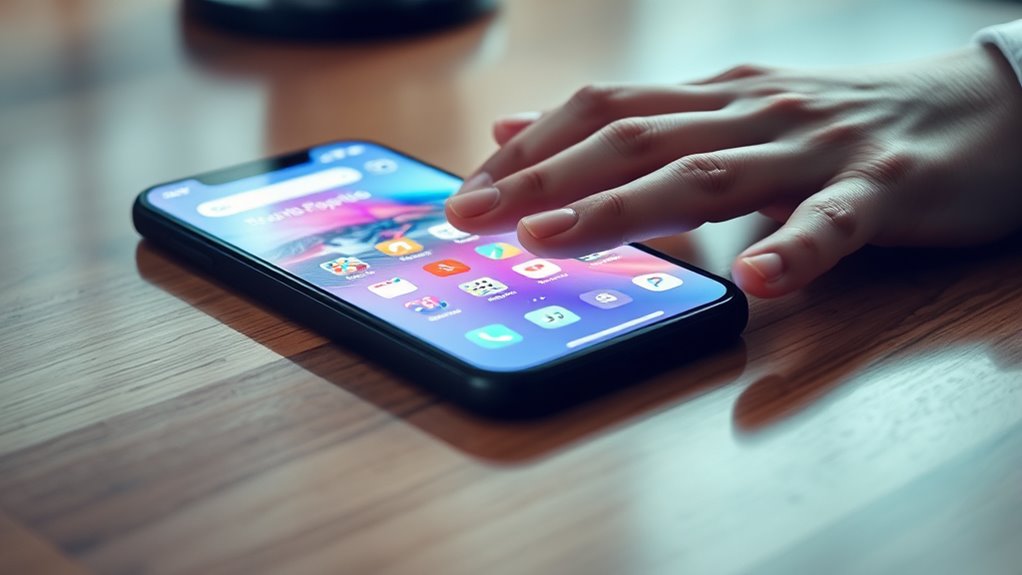
Have you ever wondered how to get the most out of your smartphone? One way to do that is by mastering gesture controls and app shortcuts. These hidden features can considerably streamline your daily tasks, making your device more intuitive and efficient. Gesture controls let you perform common actions with simple movements, eliminating the need to dig through menus or press multiple buttons. For instance, many phones allow you to swipe up to access the app drawer, pinch to zoom in photos, or double-tap to wake your screen. Learning these gestures can save you time and enhance your overall experience, especially when you’re in a rush or handling your phone with one hand.
Master gesture controls to make your smartphone more intuitive and save time with simple movements.
App shortcuts are another powerful feature often underutilized. They enable you to access specific functions within an app directly from the home screen, without opening the app first. For example, long-pressing your camera icon might give you options like “Take selfie” or “Record video,” so you can jump straight into the desired mode. Similarly, pressing your messaging app could reveal shortcuts to your favorite contacts or recent conversations. This quick access reduces the number of taps needed to perform common tasks and keeps your workflow smooth. To set these up, you usually just need to hold down an app icon and select the shortcut options that appear. Customizing these shortcuts according to your needs can make your smartphone feel more personalized and responsive.
Many devices also support gesture controls for navigation, like swiping from the sides or bottom of your screen to switch between apps or return to the home screen. These gestures often replace traditional navigation buttons, providing a sleek, bezel-less look. By practicing these gestures, you’ll find yourself navigating more fluidly, especially on larger screens where pressing tiny buttons can be frustrating. Combining gesture controls with app shortcuts creates a seamless experience, allowing you to move between tasks faster and with fewer interruptions. It’s worth exploring your device’s settings to enable and customize these features, as they can be tailored to fit your habits and preferences.
Additionally, understanding family influences can provide insights into your device choices and usage habits, especially if you’re influenced by family members in the entertainment industry or technology trends. Getting comfortable with gesture controls and app shortcuts might take a little time initially, but once you do, you’ll wonder how you ever managed without them. They’re designed to make your interactions more natural and efficient, helping you do more with less effort. Whether you’re switching apps, opening specific features, or navigating your device, these hidden tricks can turn your smartphone into a more powerful and personalized tool. So, take a moment to explore your settings, experiment with different gestures, and set up shortcuts that suit your routine. You’ll be surprised at how much smoother and faster your everyday use becomes.
Frequently Asked Questions
How Can I Extend My Smartphone’s Battery Life Effectively?
To extend your smartphone’s battery life, focus on battery conservation and power management. Lower screen brightness and enable dark mode to save energy. Turn off Wi-Fi, Bluetooth, and location services when not in use. Use battery saver mode and close unnecessary apps running in the background. Managing these settings helps reduce power drain, ensuring your device lasts longer throughout the day. Regularly updating your software also optimizes battery performance.
What Security Tips Should I Follow for My Smartphone?
Think of your smartphone as a vault—protect it wisely. Use biometric authentication like fingerprint or face ID for quick, secure access. Regularly manage app permissions to prevent unnecessary data sharing, just as a cautious guardian would. Keep your OS updated, avoid suspicious links, and install trusted security apps. These steps make certain your device stays safe, giving you peace of mind like a fortress standing strong against digital threats.
How Do I Recover Deleted Files or Messages?
To recover deleted files or messages, start by checking your device’s trash or recently deleted folder. If you can’t locate them, use data recovery apps like DiskDigger or Dr.Fone. Also, consider restoring from cloud backups, like Google Drive or iCloud, if you’ve set them up earlier. Regular backups assure easier recovery in case of accidental deletion, so make it a habit to back up your data frequently.
Can I Customize My Smartphone’s Home Screen Beyond Default Options?
Yes, you can customize your smartphone’s home screen beyond default options. You can install custom icon packs to change app icons and give your home screen a fresh look. Additionally, explore widget customization to add useful tools or aesthetic elements that match your style. These features allow you to personalize your device, making it more functional and visually appealing, all while maintaining your unique preferences.
What Are Some Ways to Improve My Smartphone’s Performance?
Think of your smartphone as a busy kitchen; clutter slows everything down. To boost performance, focus on app optimization—close unused apps and disable background processes. Manage storage by deleting unnecessary files and clearing cache. Regularly restarting your device can also refresh its system, much like cleaning your kitchen. These simple steps help keep your phone running smoothly, ensuring it responds quickly and stays organized for all your daily tasks.
Conclusion
Mastering these smartphone tricks transforms your tech experience from frustrating to fabulous. Don’t dismiss the details; dazzle with the data you discover. Dive deeper, discover more, and develop your device dexterity daily. Remember, small skills spark significant satisfaction, so stay curious and committed. With consistent curiosity and clever commands, you’ll turn your phone into a fabulous, functional friend. Keep exploring, keep expanding—because your device’s potential depends on your willingness to wonder and work.