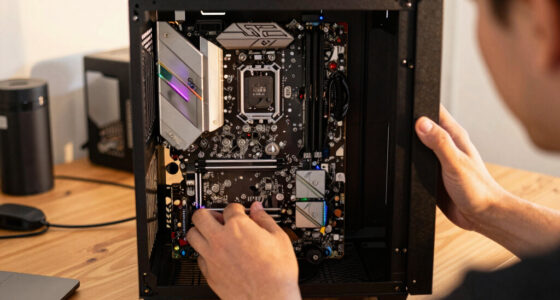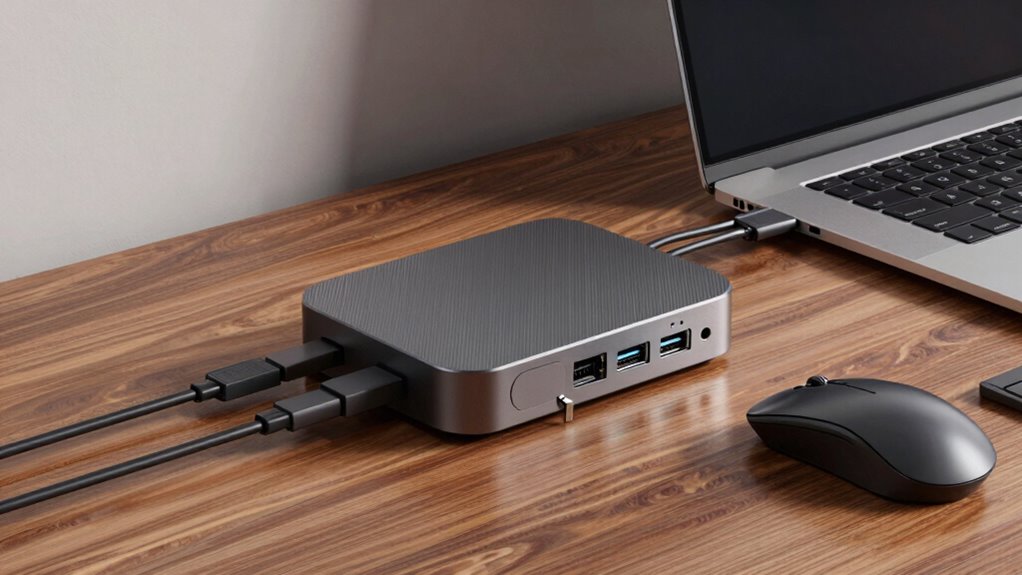

When choosing a docking station for your laptop, focus on wireless charging features, port compatibility, and build quality. It should support essential connections like HDMI, USB-C, and Ethernet, along with fast data transfer. Make sure it offers reliable power delivery to charge your laptop efficiently. Opt for a sturdy, compact design that works with your OS and is future-proof with USB 3.1 or Thunderbolt standards. Keep exploring to discover how to get the most out of your setup.

Get the latest gadgets delivered free — and shop member deals
- Fast, free delivery on millions of items
- Access to Prime Big Deal Days deals on October 6–7
- Prime Video, Amazon Music and more included
Key Takeaways
- Ensure compatibility with your laptop’s ports and operating system for seamless connectivity.
- Prioritize models with sufficient ports (USB, HDMI, Ethernet, SD) for your peripherals.
- Check for support of fast data transfer standards like USB 3.1 or Thunderbolt 3/4.
- Opt for sturdy, compact designs that suit your workspace and daily portability needs.
- Confirm power delivery capabilities to efficiently charge your laptop during use.
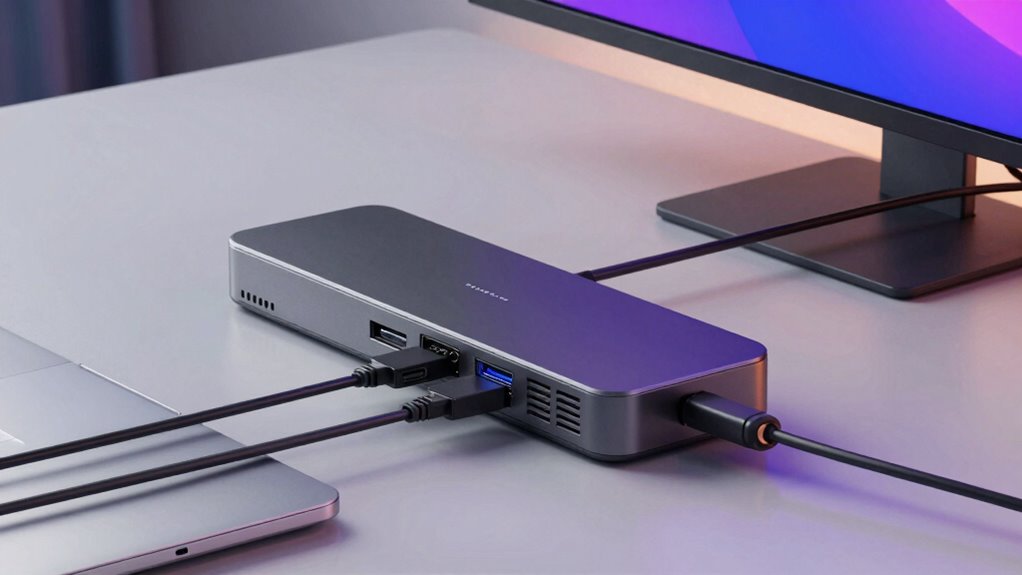
If you frequently use your laptop for work or entertainment, a docking station can substantially boost your productivity and convenience. It allows you to connect multiple peripherals, charge your device, and organize your workspace efficiently. When choosing the right docking station, one of the first things to look into is wireless charging. This feature can eliminate the clutter of charging cables and make it easier to power up your compatible devices, like your smartphone or wireless earbuds, directly from your workspace. Wireless charging integrated into a docking station keeps your desk tidy and makes sure your devices stay charged without the hassle of managing extra cords. Additionally, consider port compatibility to ensure your most-used devices will work seamlessly with the dock.
Another critical factor is port compatibility. You want a docking station that supports the ports you frequently use, such as HDMI or DisplayPort for external monitors, USB-C or USB-A for peripherals, Ethernet for wired internet, and SD card readers for photographers or content creators. Make sure the docking station has enough ports to accommodate all your devices without needing additional hubs. It’s also essential to verify that the ports are compatible with your laptop’s specifications and that the docking station can handle the data transfer speeds you require, especially if you’re dealing with large files or high-resolution displays. Considering technology standards** can help ensure your dock remains relevant as new devices and interfaces emerge. Staying informed about industry updates can also guide you toward a more future-proof choice. Moreover, choosing a device with cross-platform compatibility** ensures smooth operation across different operating systems, enhancing your overall experience.
Beyond ports and wireless charging, think about the overall build quality and size. A sturdy, well-designed dock can withstand daily use and fit comfortably into your workspace. Compact models are ideal if you have limited space, but they shouldn’t sacrifice essential connectivity options. Look for a docking station that’s easy to set up and use, with straightforward connection points that align with your laptop’s ports. Compatibility isn’t just about the physical connectors; it’s also about ensuring the device works seamlessly with your operating system, whether that’s Windows, macOS, or Linux. Also, pay attention to power delivery capabilities, which can be crucial for charging your laptop efficiently while connected.
Lastly, keep in mind future-proofing. Technology evolves quickly, so choose a docking station that supports the latest standards, such as USB 3.1 or Thunderbolt 3/4, to maximize speed and compatibility. Investing in a versatile, feature-rich docking station means you won’t need to upgrade frequently, saving you money and hassle down the line. To sum up, prioritize wireless charging features, make sure port compatibility with your devices, evaluate build quality, and choose a model that’s adaptable to future needs. With these considerations, you’ll find a docking station that enhances your setup and streamlines your workflow effectively.
Frequently Asked Questions
Can a Docking Station Improve Laptop Performance?
A docking station doesn’t directly boost your laptop’s performance, but it can improve your overall experience. By expanding connectivity, it helps you avoid portability concerns, letting you connect multiple peripherals easily. Plus, some docking stations include power delivery, which can help preserve your battery life by charging your laptop efficiently. While it won’t speed up your processor, it streamlines your workflow and makes multitasking smoother.
Are Docking Stations Compatible With All Laptop Brands?
You might think docking stations work seamlessly with all laptops, but they don’t. Compatibility varies, especially with brands and models. Some docking stations feature wireless charging and ergonomic design, making them more versatile, but always check your laptop’s ports and specifications first. Make certain the docking station supports your device’s connection types and power needs. This way, you avoid compatibility issues and maximize your workspace efficiency.
How Do I Troubleshoot Connectivity Issues With My Docking Station?
To troubleshoot connectivity issues with your docking station, start by checking your cables for secure connections and any visible damage. Make certain your docking station is receiving adequate power delivery—sometimes, insufficient power can cause connection problems. Manage your cables neatly to avoid strain or disconnections, and restart your laptop and docking station. Updating drivers and firmware can also resolve compatibility issues, ensuring a smooth connection.
Do Docking Stations Support 4K or High-Resolution Displays?
Ever wondered if your docking station can support 4K or high-resolution displays? Most modern docking stations do support high display resolutions, offering impressive video output options like 4K or even 5K. When choosing one, check its display resolution capabilities and video output ports to guarantee they match your needs. This way, you can enjoy crisp visuals and seamless multitasking, making your workspace more productive and visually appealing.
Is It Necessary to Update Drivers for a Docking Station?
Yes, updating drivers for your docking station is necessary to guarantee Bluetooth connectivity and power management work smoothly. When you keep drivers current, you reduce connection issues, improve device compatibility, and enhance power efficiency. Regular updates also help fix bugs and add new features. Check your manufacturer’s website or device manager periodically to stay up-to-date, assuring your docking station performs reliably with your laptop.
Conclusion
Choosing the right docking station is like finding the perfect bridge between your laptop and your workspace. It seamlessly expands your connectivity, boosts productivity, and keeps your setup organized. Remember to evaluate your specific needs—ports, compatibility, and power supply—so you don’t end up with a square peg in a round hole. Invest wisely, and your docking station will become the sturdy backbone supporting your daily tasks, turning your laptop into a powerhouse of efficiency.
Evergreen bestsellers Picks
bestsellers
As an affiliate, we earn on qualifying purchases.