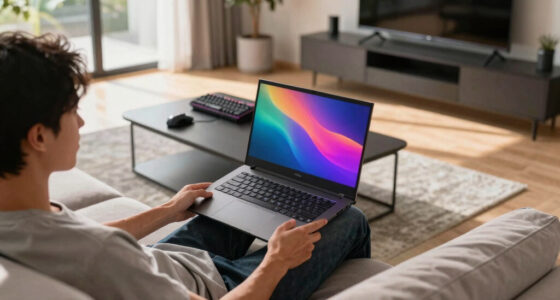

The key to instantly improving your desk comfort is choosing the right monitor size based on your space and viewing distance. Aim for a monitor that fits well within your workspace, typically around 24-27 inches for most desks, and keep it about 20-30 inches from your eyes. Correct sizing reduces eye strain and makes tasks feel more natural. Want smarter tips for a setup that boosts your comfort and productivity? Keep exploring to discover more effective adjustments.

Get the latest gadgets delivered free with Prime
- Fast, free delivery on millions of items
- Prime Video, Amazon Music and more included
- Member-only deals all year
Key Takeaways
- Choose a monitor size that fits your workspace and allows comfortable viewing from 20-30 inches away.
- Ensure the monitor’s top aligns with your eye level to promote good posture and reduce neck strain.
- Opt for a size that balances screen clarity with available desk space, typically 24-27 inches for most setups.
- Use ergonomic adjustments, including height and tilt, to optimize comfort and minimize eye fatigue.
- Avoid oversized monitors that cause constant gaze shifting or small screens that strain your eyes during extended use.
As an affiliate, we earn on qualifying purchases.
Why Your Monitor Size Matters for Comfort and Productivity
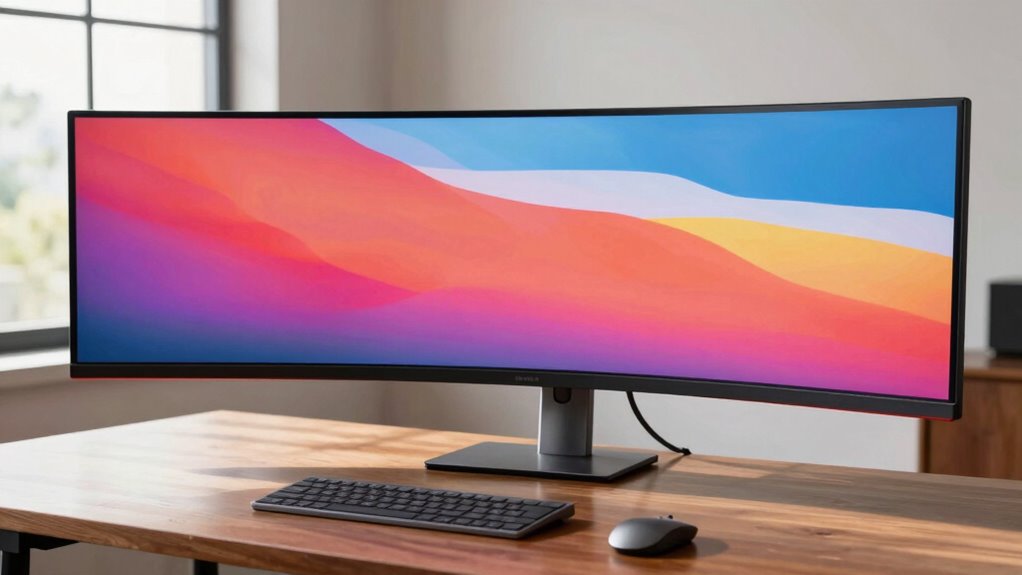
Choosing the right monitor size is crucial because it directly impacts your comfort and productivity. A well-sized monitor ensures you can see details clearly, thanks to proper monitor resolution, reducing eye strain during long work sessions. Additionally, color calibration plays an essential role; accurate colors help with tasks like photo editing or design, preventing fatigue caused by eye discomfort. If your monitor’s too small, you’ll strain your eyes trying to see fine details, which hampers focus. Too large, and you may find yourself constantly shifting your gaze, leading to discomfort. The ideal size balances screen space and clarity, allowing you to work efficiently without unnecessary eye or neck strain. Proper monitor size enhances your overall experience, making every task feel smoother and less tiring. Paying attention to monitor ergonomics can further improve your setup and comfort, especially when considering factors like viewing distance and adjustable stands.
ergonomic adjustable monitor stand
As an affiliate, we earn on qualifying purchases.
As an affiliate, we earn on qualifying purchases.
How to Find the Right Monitor Size for Your Desk
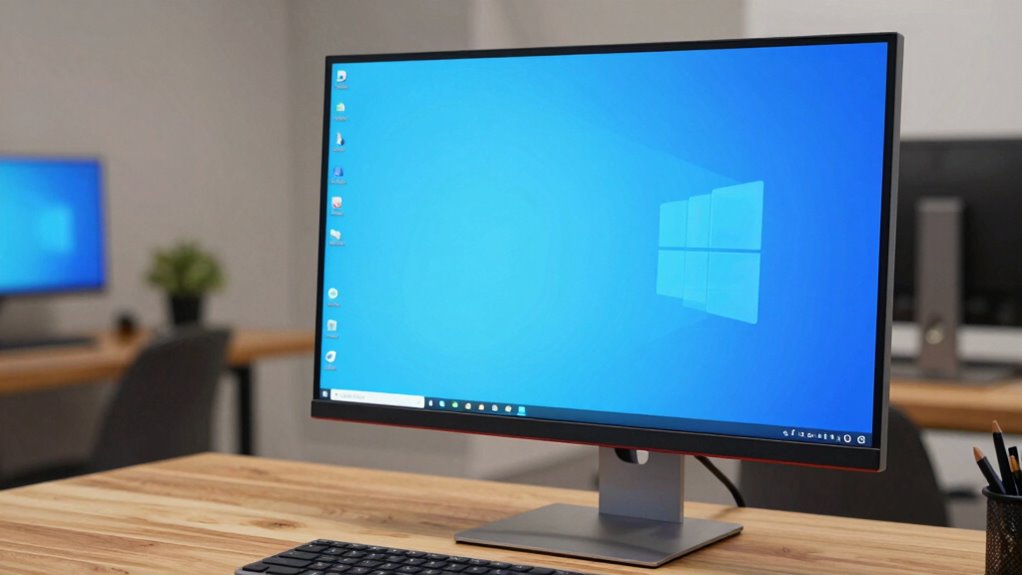
To find the right monitor size for your desk, start by considering your ideal viewing distance; larger screens need to be farther away for comfortable viewing. Make sure the screen height aligns with your eye level to prevent strain and promote good posture. Balancing these factors helps you choose a monitor that fits your workspace and enhances your comfort. Additionally, paying attention to home theater fundamentals can help you create a more immersive and comfortable viewing environment. Understanding ergonomic principles can further improve your overall setup and reduce fatigue during prolonged use. Incorporating smart thermostat setup tips can also optimize your home environment for comfort, making your workspace more enjoyable. When selecting your monitor, keeping in mind proper screen size ensures that your workspace remains both functional and ergonomic. Considering workspace organization can also contribute to creating an efficient and comfortable setup.
Ideal Viewing Distance
Have you ever wondered how close you should sit to your monitor for the best viewing experience? The ideal distance depends on monitor size and your workspace, helping you maintain ergonomic posture and avoid eye strain. Typically, sit about an arm’s length away—roughly 20-30 inches for most screens. Visualize this with the table below:
| Monitor Size | Ideal Distance | Focus Point |
|---|---|---|
| 24-inch | 20-24 inches | Center of screen |
| 27-inch | 24-30 inches | Slightly back |
| 32-inch | 30-36 inches | Full view |
Adjust based on your comfort, ensuring you can see details without craning your neck. Proper distance also helps you maintain good posture and color accuracy when calibrating your monitor. Remember, the right viewing distance can enhance your overall comfort and productivity during long work sessions. Additionally, choosing the correct monitor size can significantly impact your ergonomic setup, reducing fatigue and discomfort over extended periods. Maintaining an appropriate distance can also minimize eye strain, which is common during prolonged computer use.
Screen Height Alignment
Ever wondered how to set your monitor height so it feels just right? The key is aligning your screen so your eyes are level with the top third, reducing neck strain. When choosing a monitor size, consider how its height affects your view, ensuring your entire screen is comfortably visible without tilting your head. Proper screen height also enhances color calibration, helping you see true colors and details clearly. Adjust your monitor to match your screen resolution, so images and text appear sharp and clear at eye level. If your monitor is too tall or short, it can cause discomfort and affect your posture. Finding the right size means balancing screen height with your desk setup for a comfortable, ergonomic workspace.
monitor height and tilt adjustment
As an affiliate, we earn on qualifying purchases.
As an affiliate, we earn on qualifying purchases.
Choosing the Best Monitor Size Based on Viewing Distance
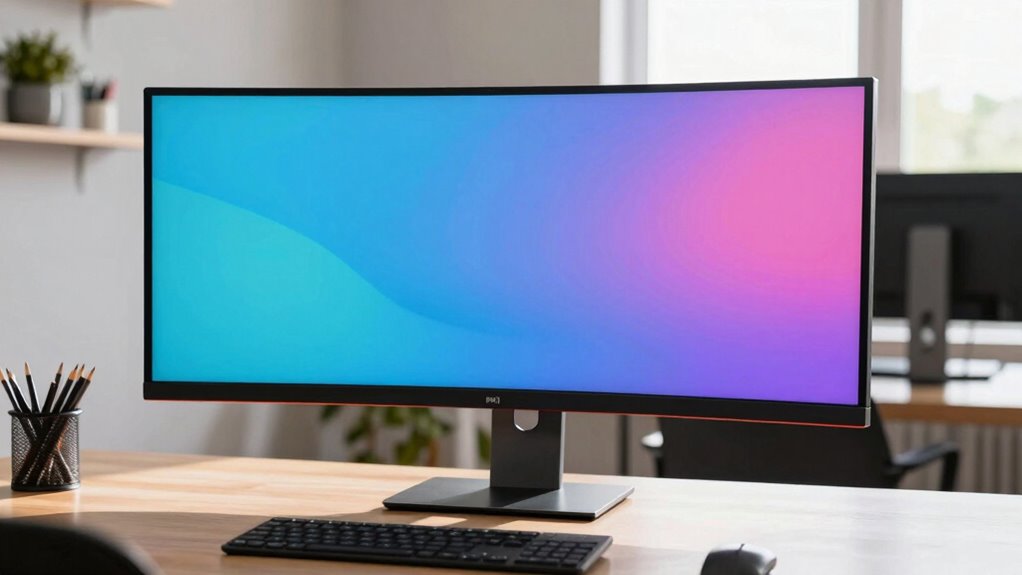
Your ideal viewing distance influences the ideal monitor size for comfort and clarity. Larger screens are better when you sit farther away, while smaller ones suit closer positions. Remember to take into account your workspace space to choose a monitor that fits well without crowding your desk. Additionally, considering screen ergonomics can help reduce eye strain and improve overall comfort during extended use.
Optimal Viewing Distance
Finding the right monitor size depends heavily on your viewing distance. If you sit too close, a larger screen can cause eye strain and make it harder to focus. To optimize your experience, choose a monitor that matches your typical distance—generally, about an arm’s length away. Proper cable management guarantees your workspace stays tidy, reducing distractions that can affect your focus and comfort. Keep in mind that color calibration is essential for tasks requiring accuracy, especially on larger screens where details matter more. When your monitor is at the right distance, you’ll notice less eye fatigue and better overall ergonomics. Adjusting your setup to fit your viewing habits helps maximize productivity and comfort, making your desk feel more inviting and functional. Additionally, understanding how filter sizing/flow impacts your workspace can help ensure your setup remains efficient and clutter-free. Being aware of ergonomics principles can further enhance your comfort during long periods of use. Incorporating proper monitor positioning is also crucial to prevent neck strain and promote better posture throughout your work sessions.
Screen Size and Comfort
Choosing the right monitor size is essential for comfort and productivity, especially when considering your viewing distance. A monitor that’s too small can cause eye strain, while one that’s too large may overwhelm your desk space. To optimize comfort, select a size that aligns with your typical viewing distance, ensuring you can view content without excessive eye or neck movement. Proper monitor mounting helps position your screen at an ideal height and angle, reducing strain and supporting better posture. Additionally, color calibration ensures your display shows accurate colors, making prolonged work easier on your eyes. Keep these factors in mind when choosing your monitor size to create a comfortable, efficient workspace.
- Match monitor size to viewing distance for reduced eye strain
- Use monitor mounting for optimal ergonomic positioning
- Prioritize color calibration for visual accuracy
- Larger screens improve multitasking and immersion
- Smaller monitors can be better for limited desk space
Workspace Space Considerations
How much workspace space you have plays a crucial role in selecting the right monitor size. If your desk is limited, opt for a smaller monitor to avoid clutter and guarantee proper cable management. A larger monitor requires more room, which can impact your comfort and productivity. Consider your viewing distance—closer distances suit smaller screens, while larger monitors excel when viewed from farther away. Proper color calibration enhances your visual experience, especially on bigger screens. Use cable management solutions to keep your workspace tidy and prevent tangling. Additionally, understanding the Best Vacuums for Dust Removal in 2024 can help maintain a clean environment around your workspace. Being aware of workspace ergonomics can further improve your comfort and reduce strain during long work sessions. Incorporating recycled materials in gardening can also inspire eco-conscious choices in your home setup. Here’s a quick reference:
| Size | Best Viewing Distance | Ideal Workspace Space |
|---|---|---|
| 24″ | 2-3 feet | Small to medium |
| 27″ | 3-4 feet | Medium |
| 32″ | 4+ feet | Larger desk |
| 34″+ | 4+ feet | Spacious desk |
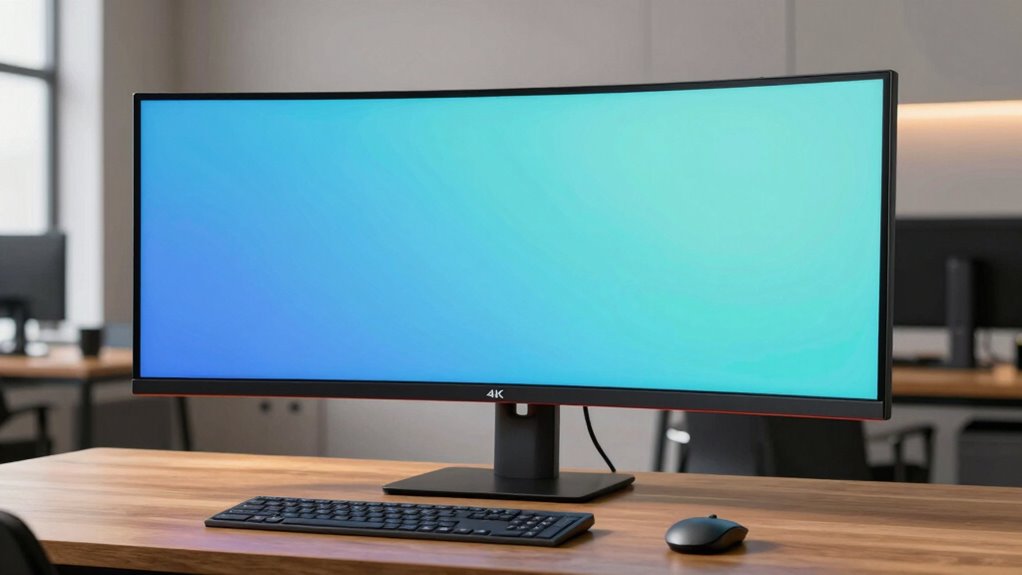
| Ultra-wide | 4+ feet | Ample room |
As an affiliate, we earn on qualifying purchases.
Measuring Your Desk and Setup for the Perfect Fit
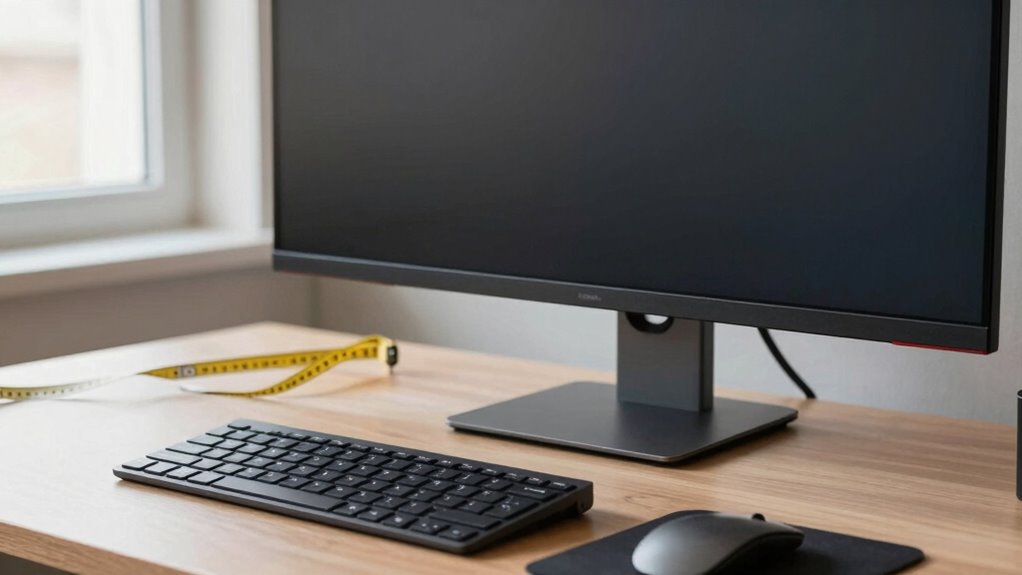
To guarantee your monitor fits comfortably on your desk, start by measuring the available space carefully. You’ll want to account for the monitor’s width, height, and depth, ensuring there’s enough room for adjustments. Consider the optimal viewing distance, typically about an arm’s length away, to avoid strain. When setting up, pay attention to details like color calibration for accurate visuals and a monitor refresh rate that suits your tasks. Proper measurements help prevent clutter and ensure ergonomic placement.
Ensure your monitor fits comfortably by measuring space, considering viewing distance, and prioritizing ergonomic and visual features.
- Measure the width, height, and depth of your workspace
- Check the monitor’s dimensions against your available space
- Leave room for cable management and accessories
- Determine the ideal viewing distance for comfort
- Consider monitor features like color calibration and refresh rate
How a Properly Sized Monitor Reduces Eye Strain and Improves Comfort
A properly sized monitor plays a crucial role in reducing eye strain and enhancing your overall comfort during long hours at your desk. When your monitor is the right size, you can maintain an ideal viewing distance, minimizing the need to squint or lean forward. Proper color calibration ensures that images and text appear clear and vibrant, reducing eye fatigue caused by strain or glare. Using monitor accessories like adjustable stands or anti-glare filters can help position your screen correctly, further decreasing discomfort. A well-sized monitor also prevents you from constantly shifting your gaze, which can lead to headaches. When everything aligns—size, calibration, and accessories—you create a more comfortable workspace, allowing you to focus longer without feeling eye strain or fatigue.
Picking the Right Monitor Size for Different Work Tasks
Choosing the right monitor size depends on the specific tasks you perform. For detailed work like photo editing, a larger screen with excellent color calibration helps you see subtle differences. If you’re into fast-paced tasks like gaming or video editing, prioritize a higher monitor refresh rate for smooth visuals. For multitasking, a mid-sized monitor (24-27 inches) balances space and clarity. Writers or coders benefit from smaller screens that reduce distraction. Remember, larger monitors require more desk space and may need adjustments in color calibration for accuracy. Additionally, considering monitor calibration techniques can ensure color accuracy across different sizes. It’s also important to think about ergonomic setup to prevent strain during long work sessions. Proper monitor placement can significantly improve comfort and reduce eye strain, especially during extended use. Ultimately, selecting the right size guarantees your workflow is efficient and comfortable, reducing eye strain and enhancing productivity. Keep your work demands and space limitations in mind to find the monitor size that fits your specific needs.
Common Mistakes to Avoid When Selecting Your Monitor Size
Selecting the wrong monitor size can hinder your productivity or cause unnecessary discomfort. One common mistake is choosing a monitor with poor color calibration, which can strain your eyes and distort visuals, especially during detailed work. Avoid screens that are too small or too large for your desk setup, as they can lead to awkward viewing angles or require excessive stand adjustments. Failing to take into account stand adjustments can result in an uncomfortable viewing height, causing neck or eye strain. Also, don’t overlook the importance of matching your monitor size to your workspace—overly large screens can crowd your desk, while too small ones might reduce visibility. Making these mistakes can make your workspace less comfortable and less efficient, so choose carefully to optimize both ergonomics and visual clarity. Considering market reputation can also help ensure you select a high-quality display that meets your needs. Additionally, paying attention to ergonomic features can significantly improve your overall comfort during long hours of use. Being aware of monitor size guidelines can further help you make an informed decision that enhances your work environment.
Adjusting Your Monitor for Better Ergonomics and Productivity
To maximize both comfort and productivity, you need to properly adjust your monitor to suit your workspace and personal preferences. Start by aligning the screen’s top edge with your eye level, keeping your neck neutral. Adjust the monitor’s refresh rate for smoother visuals, especially if you work with fast-moving content. Don’t forget to calibrate the color for accurate visuals, reducing eye strain and improving detail recognition. Use an anti-glare screen or position it to avoid reflections. Ensure the monitor is directly in front of you to prevent twisting your neck. Fine-tune brightness and contrast settings to match ambient lighting.
Adjust your monitor to eye level, reduce glare, and calibrate settings for optimal comfort and productivity.
- Set optimal color calibration for clarity
- Adjust the monitor’s refresh rate for smoothness
- Position your monitor to reduce glare
- Keep the screen at eye level
- Maintain a comfortable viewing distance
Quick Tips to Instantly Improve Your Desk Setup With the Right Monitor Size
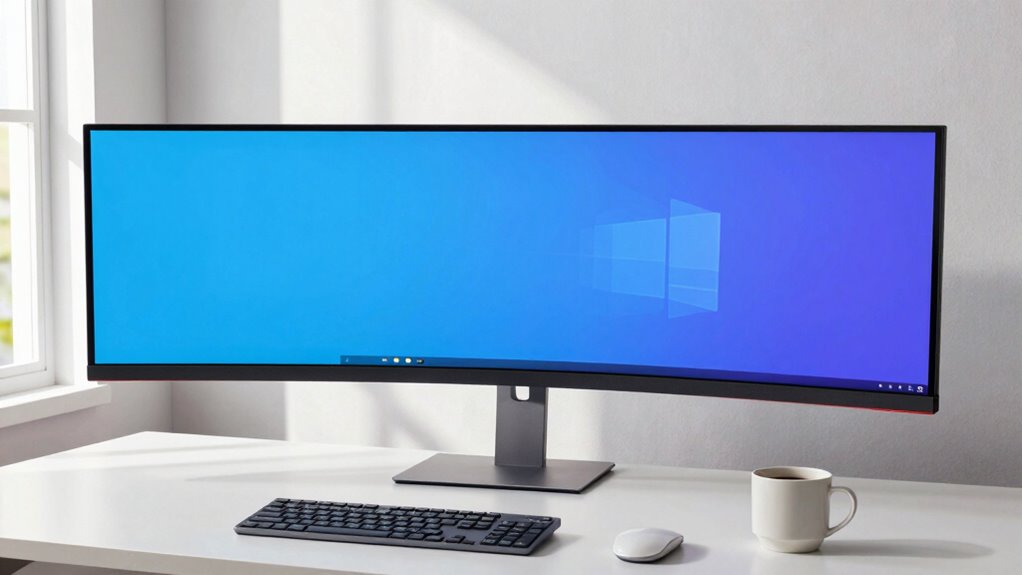
The size of your monitor can make a quick but significant difference in your comfort and productivity. To instantly improve your setup, start by ensuring your monitor’s color calibration is accurate, reducing eye strain and enhancing clarity. A properly calibrated display helps you see true colors, especially important if you handle design or editing tasks. Next, check the refresh rate; a higher rate (like 75Hz or more) results in smoother visuals, reducing flicker and fatigue during prolonged use. If your monitor feels too small or too large, adjust the distance or consider a different size that fits your workspace better. These small tweaks can dramatically boost your viewing experience, making your desk feel more comfortable and your work more efficient.
Frequently Asked Questions
How Does Monitor Size Affect Overall Workspace Organization?
Monitor size considerably impacts your workspace organization by influencing ergonomic placement and cable management. A larger monitor allows you to keep essential windows open without clutter, reducing the need for multiple screens. Proper ergonomic placement ensures comfort, while managing cables neatly keeps your desk tidy. When you choose the right size, it simplifies arranging your workspace, making it more efficient and visually appealing, ultimately boosting your productivity and comfort.
Can a Larger Monitor Improve Multitasking Efficiency?
Sure, a larger monitor can boost multitasking efficiency—if you enjoy squinting at tiny text or juggling tabs like a circus act. It enhances your ergonomic setup and visual clarity, making it easier to see multiple windows without constant switching. But beware: bigger isn’t always better if it causes neck strain or clutter. So, pick a size that balances productivity and comfort, not just size for size’s sake.
What Monitor Size Is Best for Gaming Versus Professional Work?
For gaming, opt for a monitor around 24 to 27 inches with a high refresh rate (at least 120Hz) to guarantee smooth gameplay, and prioritize fast response times. For professional work, especially tasks requiring color accuracy like photo editing or design, choose a 27-inch or larger monitor with excellent color accuracy and a standard 60Hz refresh rate. Larger screens boost productivity, but prioritize color precision for creative tasks.
How Does Monitor Resolution Influence Size Selection?
Monitor resolution impacts your size choice because higher resolutions, like 4K, require larger screens for comfortable viewing without straining your eyes. When selecting size, consider ergonomic adjustments to maintain proper eye level and distance. Also, color calibration becomes essential on larger screens to guarantee accurate visuals. A properly sized monitor with the right resolution enhances your comfort, reduces eye fatigue, and improves your overall experience, whether for work or entertainment.
Are Curved Monitors Better for Desk Space and Comfort?
Curved monitors are like your desk’s best friend, offering unmatched ergonomic design and aesthetic appeal. They hug your field of vision, reducing neck strain and making every viewing experience feel like a cinematic adventure. Plus, their sleek curves add a modern, stylish vibe that instantly elevates your workspace. If you want comfort and style in one package, curved monitors are definitely the way to go, transforming your desk into a tech masterpiece.
Conclusion
Choosing the right monitor size isn’t just a small upgrade—it’s a game-changer that can transform your entire work experience. Get it wrong, and you might as well be staring through a keyhole or trying to see the horizon with binoculars. When you pick the perfect size, your desk becomes a sanctuary of comfort and productivity—an unstoppable fortress where eye strain and frustration vanish. Trust me, the right monitor size could be the secret weapon your workspace desperately needs.
Halloween Picks
halloween
As an affiliate, we earn on qualifying purchases.