
To improve your Wi-Fi setup without complexity, start by placing your router centrally and on an elevated surface, away from thick walls, metal objects, and electronics that cause interference. Switch to less crowded channels and keep your equipment updated with the latest firmware. Small adjustments, like repositioning your router or reducing obstacles, can make a big difference. Keep exploring easy tips to optimize your network and enjoy faster, more reliable Wi-Fi throughout your home.

Get the latest gadgets delivered free with Prime
- Fast, free delivery on millions of items
- Prime Video, Amazon Music and more included
- Member-only deals all year
Key Takeaways
- Place your router centrally on an elevated surface to ensure even coverage throughout your home.
- Minimize interference by keeping the router away from electronics like microwaves and cordless phones.
- Use router settings to automatically select the best channel or manually scan for less congested channels.
- Regularly update your router’s firmware and consider upgrading to newer models with advanced Wi-Fi standards.
- Remove physical obstacles like thick walls and metal objects that block Wi-Fi signals for better coverage.

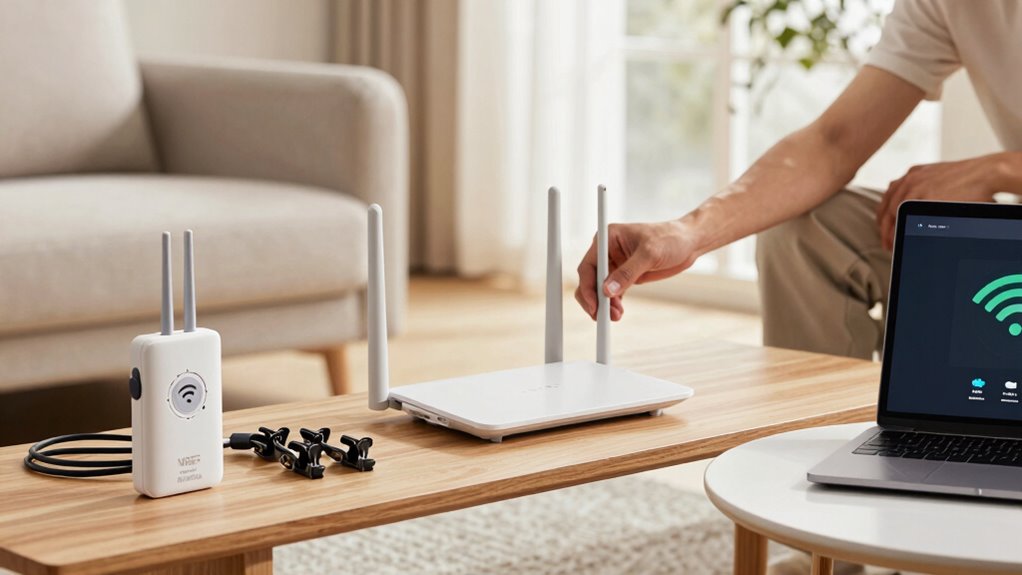
Is your Wi-Fi connection frustratingly slow or unreliable? If it is, there’s a good chance the problem stems from how your router is placed in your home. The placement of your router plays a significant role in your Wi-Fi speed and stability. To get better coverage, position your router in a central location, ideally elevated on a shelf or table, away from the floor. Avoid hiding it behind furniture, inside cabinets, or near walls that can block signals. Keep it out in the open where signals can freely radiate throughout your space.
Place your router centrally and elevated for stronger, more reliable Wi-Fi coverage throughout your home.
Another key step is reducing interference, which can seriously impact your Wi-Fi quality. Electronic devices like cordless phones, microwave ovens, and baby monitors operate on similar frequencies as your Wi-Fi, causing signal disruptions. Switch to less congested channels if your router allows it, especially if you’re in a densely populated area with many Wi-Fi networks nearby. Many routers have a setting to automatically select the best channel, but you can also manually scan for the least crowded one using your device’s network settings or dedicated apps.
Beyond interference reduction, consider the placement of other devices connected to your network. Large metal objects, mirrors, and thick walls can weaken signals. Keep your router away from these obstacles to improve coverage. If you have a multi-story home, placing your router on the main floor or near the center of your house can help ensure signals reach all levels evenly. Proper router placement can make a noticeable difference in your network’s performance, especially when considering factors like signal propagation. Additionally, ensuring your network setup is optimized can help eliminate dead zones and improve overall coverage. Regularly reviewing your network configuration can help identify and resolve potential issues before they become significant problems.
Updating your router’s firmware is another simple fix that can enhance performance and stability. Check the manufacturer’s website regularly for updates, as these often include security patches and performance improvements. If your router is several years old, upgrading to a newer model with dual-band or Wi-Fi 6 capabilities can dramatically boost your connection speed and reliability. Regularly checking your network’s setup and optimizing your equipment can also prevent future issues. Combining proper router placement, interference reduction, and keeping your equipment updated creates a straightforward, effective approach to improving your Wi-Fi setup without making things complicated. With these small adjustments, you’ll notice a more stable, faster connection that keeps up with your online needs.
Popular right now

KitchenAid Artisan 5-Qt Tilt-Head Stand Mixer – Almond Cream (KSM150PS)

Ninja Foodi 10-Qt DualZone Smart XL Air Fryer, 6-in-1, DZ550

Shark Rotator Lift-Away Vacuum with DuoClean PowerFins (LA555) – Dark Grey
As an affiliate, we earn on qualifying purchases.
Frequently Asked Questions
How Often Should I Update My Wi-Fi Router’s Firmware?
You should update your Wi-Fi router’s firmware at least once every three to six months. Regular router maintenance, including firmware updates, helps fix security vulnerabilities, improve performance, and add new features. Keep an eye on your router’s admin panel or the manufacturer’s website for notifications about updates. Staying current with firmware updates guarantees your connection remains secure and reliable without making your setup overly complicated.
Does the Placement of My Router Affect Wi-Fi Speed?
Think of your router like a lighthouse; if it’s hidden behind a wall or in a corner, its light doesn’t reach far. Placement of your router greatly affects Wi-Fi speed because poor positioning causes Wi-Fi interference and dead zones. To maximize, place your router in a central, elevated spot, away from obstacles and electronics. Proper router placement guarantees your signal shines brightly across your entire home, boosting your connection quality.
What Is the Best Way to Secure My Wi-Fi Network?
To secure your Wi-Fi network, start by creating a strong, unique password that’s hard to guess. Enable WPA3 or WPA2 encryption for added protection. Set up a guest network to keep visitors separate from your main devices, reducing security risks. Regularly update your router’s firmware and disable remote management. These steps make your network safer without complicating your setup, ensuring your data stays protected.
Can Upgrading My Modem Improve Wi-Fi Performance?
Upgrading your modem can be a game-changer, boosting your Wi-Fi performance like a turbocharged engine. It helps reduce interference and enhances signal strength through interference mitigation and signal boosting features. Newer models often support faster speeds and better coverage, making your connection more reliable. So, if your current modem is outdated, upgrading can clear the roadblocks, improve stability, and give your Wi-Fi a fresh, powerful boost.
How Do I Prioritize Devices on My Network?
You can prioritize devices on your network by adjusting device bandwidth settings through your router’s Quality of Service (QoS) feature. This allows you to allocate more bandwidth to important devices. Implement network segmentation by creating separate Wi-Fi networks for different device groups, reducing congestion. By managing device priorities and segmenting your network, you guarantee essential devices get the best performance without overloading your Wi-Fi.
Conclusion
By making a few simple adjustments, you can turn your Wi-Fi into a reliable highway for all your devices. Think of it as tuning a guitar—small tweaks can produce a harmonious connection free from static and dropouts. With these tips, you’ll enjoy smoother streaming and faster browsing, all without the headache of complicated setups. Remember, a better Wi-Fi isn’t just a luxury; it’s the backbone of your connected life—so give it the attention it deserves.