
This checklist is for anyone planning a next-gen computer setup in 2026, whether you’re choosing a compact desktop, adding a screen, or upgrading everyday accessories. It covers the gear around your computer as well as the devices that can shape your workspace.

Get the latest gadgets delivered free with Prime
- Fast, free delivery on millions of items
- Prime Video, Amazon Music and more included
- Member-only deals all year
The sections are organized by gear category. Mini PCs and portable monitors offer advice without a specific product pick; the remaining sections name one pick for a mechanical keyboard, ergonomic mouse setup, docking station, and portable SSD.
Use each section to check your needs and compatibility before choosing. Compare the advice with your computer’s ports, your available desk space, and how you plan to use the gear. Treat the named products as starting points, then confirm their details fit your setup.
Mini PCs
A mini PC can make sense when you want a compact desktop or need a computer that fits a smaller work area. Start with the tasks you expect it to handle, then compare the system requirements of the software and accessories you use. Small dimensions alone do not tell you whether a particular model suits your workload.
A common mistake is choosing by appearance or footprint without checking the ports and connections you need. List your monitor connections, USB devices, network needs, and any other peripherals before comparing options. Check whether the computer has enough of the right ports, and whether a separate adapter or dock would be required.
Measure the intended spot and leave room for cables and access to ports. Verify the device’s dimensions and connection details against your desk and monitor before buying. If you may add equipment later, consider those needs now so the compact setup remains practical as it grows.
What to look for:
- Dimensions that fit the intended location
- Ports for your display and peripherals
- System requirements for your regular tasks
- Room for ventilation and cable access
- Expansion or docking options that suit your plans
Portable monitors
A portable monitor can add screen space when you work across locations or want another display without committing to a permanent desk setup. First decide how and where you expect to use it: occasional extra screen space, travel, or a regular second display. That use case shapes the size and connection details worth comparing.
A frequent buying mistake is assuming every portable monitor connects the same way. Check how the display connects to your computer and whether that computer supports the required video output over the connection you plan to use. Review any power requirements as well; a cable that fits physically does not guarantee that it carries video or supplies enough power.
Compare the monitor’s measurements with your bag, desk, or intended mounting arrangement. Confirm how it stands or attaches, and whether the included cables work with your devices. Check the display specifications against your needs, then make sure the computer can drive it alongside any existing monitor.
What to look for:
- Screen dimensions suited to travel or desk use
- Video connection supported by your computer
- Power requirements and cable arrangement
- Stand or mounting method that fits your workspace
- Display specifications compatible with your setup
Mechanical keyboards
The GravaStar Mercury K98 Pro 98-Key Wireless Mechanical Gaming Keyboard is the named pick for this checklist’s mechanical keyboard slot. A mechanical keyboard can change the feel of everyday typing and gaming, so consider how you will use it and whether its layout works for you before settling on a model.
A common mistake is focusing on a product name or appearance without checking the layout and connection details. Compare the key arrangement with the layout you already know, and consider whether the keyboard leaves room for your mouse and other desk items. Since this pick is described as wireless, check the connection options and compatibility against the computer or devices you intend to use.
Measure your available desk space and compare it with the keyboard’s dimensions. If you switch between devices, confirm that the connection method suits each one. Also check the product listing for the specific features and included accessories you care about; the product name alone does not establish them.
What to look for:
- A key layout that suits your typing habits
- Dimensions that fit your desk and mouse space
- Wireless connection compatible with intended devices
- Product details that match your preferred typing feel
- Included accessories and features confirmed in the listing
GravaStar Mercury K98 Pro 98-Key Wireless Mechanical Gaming Keyboard

The GravaStar Mercury K98 Pro is a compact 98-key wireless mechanical keyboard featuring customizable RGB lighting, a TFT display, and a multifunction knob. It offers dual connectivity options, high polling rate, and a durable aluminum alloy exoskeleton, making it suitable for gaming and productivity.
Pros:
- Wireless connectivity with high polling rate for gaming responsiveness
- Customizable RGB lighting and ambient modes
- Built-in TFT display for system info and animations
- Premium durable aluminum construction
Cons:
- Relatively heavy for portable use
- Limited software customization without dedicated app
- Higher price point due to advanced features
Best for: A desk setup looking for a named mechanical keyboard option
Not ideal for: Buyers who have not checked layout or device compatibility
Bottom line: Verify the layout, dimensions, and wireless compatibility before choosing this keyboard.
Ergonomic mice
The named pick for this slot is the Ergonomic Keyboard Stand with Wrist Rest and Massage Mouse Pad Set, Bl. Its name describes a stand, wrist rest, and mouse pad set, so check the listing carefully to understand the included pieces and how they relate to your intended mouse setup.
A common mistake is assuming a product labeled ergonomic will automatically suit every hand, desk, or typing position. Consider how you place your keyboard and mouse, and whether the size and shape of the pieces fit your workspace. Check the listing for dimensions, materials, and any usage details rather than inferring them from the title.
Measure the space around your keyboard and mouse, then compare those measurements with the product details. Think about how the wrist rest and mouse pad sit alongside your existing equipment. If you are looking specifically for an ergonomic mouse, verify whether the listing includes a mouse; the given product name describes a mouse pad set, not a mouse device.
What to look for:
- Exact items included in the product listing
- Dimensions for the keyboard and mouse area
- Fit alongside your existing keyboard and mouse
- Details about materials and usage
- Confirmation of whether a mouse device is included
Ergonomic Keyboard Stand with Wrist Rest and Massage Mouse Pad Set, Black

This ergonomic set includes a two-angle keyboard stand with an attached memory foam wrist rest and a matching massage mouse pad. Both pads have Lycra covers, massage beads, and non-slip PU bases; the keyboard stand offers 7° and 13.3° angle options.
Pros:
- Two keyboard angles offer setup flexibility.
- Memory foam provides cushioned wrist support.
- Massage beads are included on both pads.
- Non-slip PU bases are designed for wood, glass, and laminate desks.
Cons:
- The keyboard stand offers only two angle settings.
Best for: Shoppers seeking a wrist rest and mouse pad set
Not ideal for: Anyone expecting the product name to guarantee an ergonomic mouse device
Bottom line: Check the listing contents and dimensions to confirm this set meets your mouse setup needs.
USB-C docking stations
The Anker Prime TB5 Docking Station, 14-in-1 Thunderbolt 5 Dock for Laptop is the named pick for the docking station slot. A dock can bring several connections together, so begin by listing the displays, storage, and other peripherals you want to attach to your laptop.
A common mistake is treating the number of ports or the Thunderbolt 5 label as proof that every desired connection will work. Check your laptop’s supported ports and capabilities, then compare them with the dock’s specifications. Pay particular attention to display support, charging, and the exact ports you need; confirm that the dock and laptop support the same requirements.
Plan where the dock will sit and how its cables will reach your laptop and peripherals. Review the product listing for the full port breakdown, power details, and compatibility information. If you use multiple monitors or specialized devices, verify their requirements individually before relying on the dock as the connection point.
What to look for:
- Port types that match your devices
- Laptop compatibility with Thunderbolt 5
- Display support for your monitor setup
- Charging details suited to your laptop
- Cable reach and a practical place for the dock
Anker Prime TB5 Docking Station, 14-in-1 Thunderbolt 5 Dock for Laptops
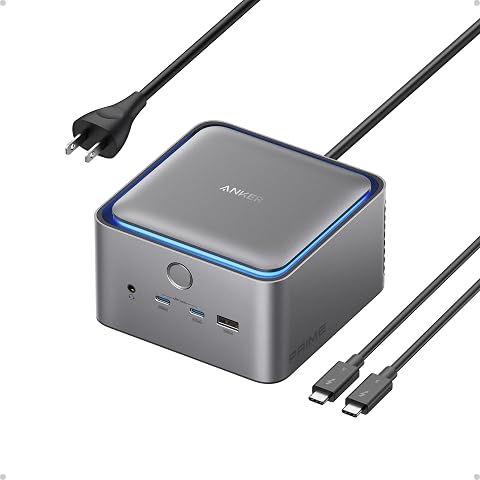
The Anker Prime TB5 is a versatile 14‑in‑1 docking station featuring Thunderbolt 5 connectivity, dual 8K video output, and up to 140W power delivery. It includes multiple USB‑C/A ports, Ethernet, SD/TF card readers, HDMI/DisplayPort, an active cooling system, and comes with cables and a 24‑month warranty.
Pros:
- Supports dual 8K displays at 60 Hz via Thunderbolt 5.
- Fast 120 Gbps data transfer and 140W power delivery with PD 3.1.
- Active cooling system prevents overheating under heavy load.
- Includes a variety of ports: USB‑C, USB‑A, Ethernet, SD/TF readers, HDMI/DisplayPort.
Cons:
- Large footprint may occupy significant desk space.
Best for: Laptop users consolidating compatible peripherals through a dock
Not ideal for: Anyone whose laptop or devices lack matching connection support
Bottom line: Check laptop, display, and peripheral compatibility against the dock’s full specifications.
External solid-state drives
The Samsung T9 4TB Portable SSD, USB 3.2 Gen 2×2 is the named pick for external solid-state storage. A portable SSD can be useful when you need files available outside your computer, but first consider what you plan to store and how you expect to connect the drive.
A common mistake is choosing capacity without checking the host connection. The product name specifies USB 3.2 Gen 2×2, so confirm that your computer supports the drive’s connection and that you have a suitable cable. If a system has a different USB capability, check what that means for your intended use rather than assuming the drive will operate at the same rate everywhere.
Think through how the drive will fit into your routine: where it will be carried, which devices need access, and whether its stated capacity meets your storage needs. Review the listing for dimensions, included cable details, and compatibility. Keep a separate backup plan for important files; a portable drive is still one storage device.
What to look for:
- Capacity that fits the files you plan to store
- USB 3.2 Gen 2×2 compatibility with your computer
- Suitable cable and connection details
- Dimensions suited to how you will carry it
- A separate backup plan for important files
Samsung T9 4TB Portable SSD, USB 3.2 Gen 2×2
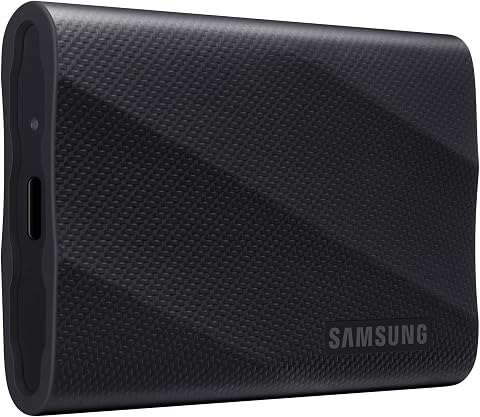
The Samsung T9 is a 4TB portable solid-state drive with read and write speeds of up to 2,000 MB/s when used with a compatible host and cable. It features dynamic thermal management, AES 256-bit hardware encryption, and compatibility with computers, consoles, tablets, and supported iPhones.
Pros:
- Up to 2,000 MB/s read and write speeds with a compatible setup
- Dynamic thermal management helps control heat during heavy use
- AES 256-bit hardware encryption
- Rugged durability with drop resistance up to 9.8 ft
Cons:
- Maximum speeds require a compatible USB 3.2 Gen 2×2 host, cable, and UASP mode
- Host device compatibility may vary
Best for: People seeking a named portable SSD with 4TB capacity
Not ideal for: Setups that have not checked USB compatibility or cable needs
Bottom line: Confirm your computer’s USB support and the drive’s details before relying on it.
Start with the gear that addresses a specific setup need: check the computer and display connections first, then choose a dock or monitor if those connections call for one. Add a keyboard, mouse-area accessories, or portable storage after confirming they fit your desk, devices, and daily use.
You do not need to choose everything at once. Work through the compatibility checks, measure the space you have, and compare product details with your own requirements. A thoughtful checklist makes it easier to build a setup one useful piece at a time.