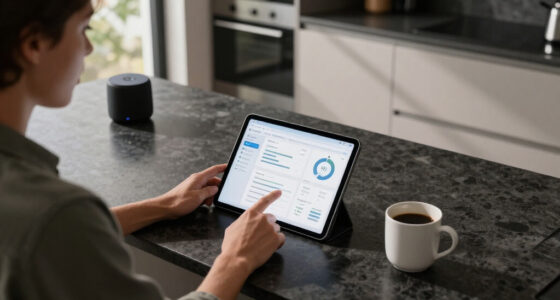

Technology shapes how we study, work, create, travel, relax, and manage our homes. Yet keeping up with it can feel like a full-time job. New devices appear constantly, familiar products gain unfamiliar features, and bold headlines often make incremental updates sound revolutionary. The useful question is rarely “What is newest?” It is “What will genuinely improve the way I live or work?”

Get the latest gadgets delivered free with Prime
- Fast, free delivery on millions of items
- Prime Video, Amazon Music and more included
- Member-only deals all year
This hub is an orientation guide to technology news and gadgets. It covers the decisions that matter across personal computing, mobile accessories, audio, data storage, connected homes, outdoor technology, and digital security. Use it to identify the category that fits your needs, understand the tradeoffs, and then follow the linked guides for focused recommendations.
How to Make Sense of Technology News
Technology news generally falls into a few categories: product launches, software updates, corporate developments, scientific advances, security incidents, and regulatory changes. Each can affect buying decisions differently. A new device announcement may reduce the appeal of an older model, while a software update could extend that model’s usefulness. A security story might require immediate action even if you are not shopping at all.
When reading a headline, separate what has been announced from what is actually available. Look for confirmed specifications, compatibility requirements, support policies, and release regions. Early demonstrations can show potential, but they do not always reflect everyday performance. It is also worth distinguishing a genuinely useful feature from one that simply produces a more impressive specification sheet.
A simple filter for evaluating a tech story
- Who made the announcement, and has it been independently confirmed?
- Is the product or feature available now, scheduled for later, or only conceptual?
- Does it solve a common problem or address a narrow use case?
- Will it work with devices and services you already use?
- Does it introduce new costs, subscriptions, privacy concerns, or accessories?
- Will the news change what you should buy, update, repair, or secure?
Popular right now

Bose QuietComfort Wireless Earbuds with Active Noise Cancellation, Dewdrop Mint

Shark PowerDetect Corded Stick Vacuum with HEPA Filtration, Purple (HZ4001AMZ)

Dyson V8 Cyclone Cordless Vacuum
As an affiliate, we earn on qualifying purchases.
Personal Computing: Choose for the Work You Actually Do
Computers should be evaluated as complete systems rather than collections of impressive components. Processing power matters, but so do memory capacity, storage, display quality, cooling, ports, operating-system compatibility, repair options, and the applications you depend on. A student writing papers has different priorities from an artist handling large media files or an engineer running simulations.
Start with your most demanding regular task. Basic browsing and documents seldom require workstation-class hardware. Video production, complex development environments, three-dimensional rendering, and scientific simulation can benefit from far more capable processors, graphics hardware, memory, and storage. Specialized buyers can explore the guide to Mac Pro models for 3D rendering and simulation for a closer look at machines aimed at intensive creative and technical workflows.
Do not overlook the equipment around the computer. A reliable monitor, comfortable keyboard, appropriate pointing device, stable network connection, and practical backup plan may improve daily work more than a modest processor upgrade. Port selection also matters: needing several adapters can make an otherwise elegant setup cumbersome.
Student Technology: Build a Portable System
Student technology works best as a coordinated kit. A laptop must survive travel between home, lectures, libraries, laboratories, and shared workspaces. Power and internet access may be inconsistent, while books, cables, water bottles, and personal items all compete for limited bag space.
The right backpack is therefore part of the technology setup, not merely a fashion choice. Laptop protection, weight distribution, compartment layout, weather resistance, and overall capacity deserve attention. Students comparing organization-focused options can begin with these student laptop backpacks for campus organization. For broader school requirements, see the guide to laptop backpacks for school and college. The collection of student backpacks designed around campus life offers another useful route based on daily routines.
What belongs in a dependable student tech kit?
- A protective bag that fits the laptop without leaving excessive movement.
- A compact charger and the correct cables for essential devices.
- Headphones or earbuds suitable for study and online classes.
- A backup method for assignments and important documents.
- A small cable organizer to prevent damage and wasted time.
- Device tracking, strong passwords, and automatic screen locking.
Battery planning is especially important during long days. A power bank should be selected by device compatibility, output capability, port selection, size, and transportation restrictions rather than capacity alone. The guide to portable laptop chargers can help narrow the options for mobile computing.
Audio Technology for Focus, Calls, and Everyday Listening
Wireless audio has become an everyday tool for entertainment, communication, exercise, travel, and concentration. The best choice depends on context. A secure fit may matter during movement, while microphone clarity can be more important for meetings. Students may prioritize comfort, passive isolation, active noise control, battery management, and the ability to switch between devices.
Codec names and driver sizes can be difficult to interpret in isolation. Fit has a major effect on comfort, sound, and isolation, and personal preference remains important. Consider how long you will wear the earbuds, whether you need awareness of your surroundings, and how easily the case fits into your routine. For options centered on quieter work sessions, explore these wireless earbuds for studying.
Hearing safety should remain part of the decision. Good isolation can reduce the urge to overpower background noise with higher volume. Regular breaks and sensible listening levels matter regardless of how advanced the audio hardware may be.
Power, Ports, and Compatibility
Many gadget frustrations begin with compatibility rather than device quality. Connectors may look alike while supporting different charging speeds, display standards, or data rates. Before buying a charger, hub, dock, cable, or battery, check the requirements of the device it will serve. The slowest component in the chain can limit the whole setup.
Universal charging standards can simplify a travel kit, but verify wattage and supported protocols. A charger appropriate for a phone may not sustain a laptop under load. Similarly, a cable intended primarily for charging may transfer files slowly or fail to support an external display. Clear labels and a small inventory of known-good cables can prevent confusion.
Storage and Backups: Protect the Files That Matter
Storage is easy to ignore until a device is full or a file disappears. Internal capacity affects convenience, but it should not be confused with backup. A single copy on a laptop, phone, or external drive remains a single point of failure.
Portable drives are useful for moving large files, expanding local capacity, creating offline backups, and maintaining project archives. Compare physical size, connection type, transfer performance, durability, operating-system support, and whether you need a traditional hard drive or solid-state storage. The overview of portable external hard drives provides a starting point for matching storage to your workflow.
A practical backup structure
- Keep the working copy on your primary computer or device.
- Maintain a separate local copy on another storage device.
- Keep an additional copy away from the primary location when feasible.
- Automate backups so protection does not depend on memory.
- Test restoration occasionally instead of assuming every backup is usable.
- Encrypt sensitive portable storage and store recovery information securely.
Smart-Home and Outdoor Technology
Useful household technology is not limited to voice assistants and indoor sensors. Lighting, cleaning equipment, security devices, and outdoor accessories increasingly combine traditional hardware with timers, automation, efficient power management, or connected controls. The best household gadget is usually the one that performs its core function reliably even when an app, network, or cloud service is unavailable.
Outdoor products introduce additional considerations. Exposure to water, temperature changes, sunlight, dirt, and physical impact makes installation and environmental suitability crucial. Check where a device may be used, how it receives power, and whether connectors and controls are protected. Anyone planning an inviting patio, garden, or balcony can review these outdoor string lights for brightening a space.
Automation also extends to property maintenance. Pool equipment, for example, should match the pool design, existing system, debris conditions, and maintenance expectations. The guide to pressure pool cleaners helps explain the available choices within that specialized category.
Physical Security Is Part of Gadget Security
Cybersecurity receives much of the attention in technology coverage, but physical protection matters too. Phones, laptops, bicycles, portable drives, and other valuable equipment can expose both financial and personal information when stolen.
Use automatic locking, device encryption, account recovery tools, and location features where appropriate. Avoid leaving devices visible in unattended vehicles, and record serial numbers for important equipment. For bicycles and other mobile gear, match the lock type and locking method to the environment and likely duration of unattended storage. The guide to bike locks for keeping a ride secure covers options for this practical side of personal technology.
Privacy, Software Support, and Connected Services
A connected gadget is also a software product. Before purchasing one, consider what data it collects, which permissions it requests, whether an account is mandatory, and what happens if its companion service changes. Products that rely heavily on remote servers may lose features if support ends.
Install security updates promptly, remove unused applications, review account permissions, and enable multi-factor authentication on important services. Unique passwords managed through a reputable password manager are safer than reusing memorable credentials. When disposing of a device, back up needed information, sign out of associated services, remove activation locks where required, and perform the manufacturer’s recommended reset procedure.
How to Buy Gadgets Without Chasing Every Upgrade
A disciplined buying process starts with a problem statement. Write down what the current setup cannot do, which improvement would matter, and which constraints are fixed. Then separate essential features from conveniences. This reduces the chance that marketing language will redefine your needs midway through the search.
Before making a decision
- Check dimensions, weight, ports, operating-system support, and accessory compatibility.
- Consider the complete cost of required cables, adapters, cases, subscriptions, and storage.
- Look for a clear update and support policy when software is central to the product.
- Read return, warranty, and repair information from the relevant seller or manufacturer.
- Think about how the device fits into your existing workflow and ecosystem.
- Choose for realistic daily use rather than rare hypothetical scenarios.
The most capable gadget is not automatically the best fit. A simpler device may be easier to carry, maintain, secure, and integrate. Likewise, an older product can remain useful when it still receives appropriate support and meets the owner’s needs. Upgrade when the benefit is concrete: reduced waiting, improved reliability, better accessibility, stronger security, or the ability to complete work that is currently impractical.
Build a Technology Setup That Lasts
A durable technology setup is a system of compatible, maintainable parts. Start with the core device, protect it physically, provide dependable power, establish backups, and secure the accounts connected to it. Add accessories only where they remove friction or enable something valuable.
Technology news can then serve its proper purpose: alerting you to meaningful changes rather than creating pressure to replace equipment constantly. By connecting each announcement or gadget to a real need, you can spend less time chasing specifications and more time using technology effectively.