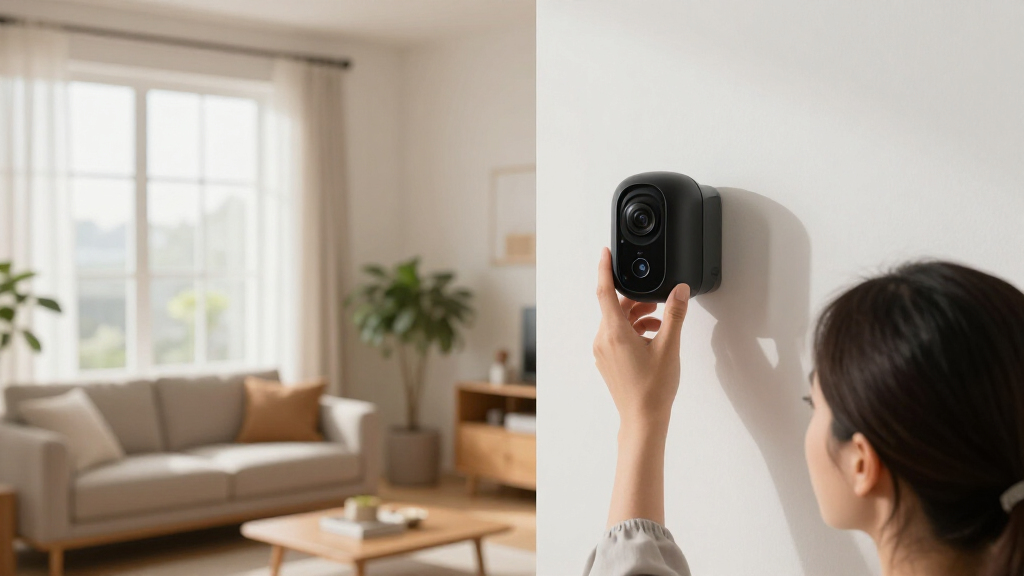

This guide provides a comprehensive process for installing a smart home security system, suitable for homeowners and renters who want reliable, connected protection. You will learn how to choose compatible devices, install sensors and cameras, and set up the system for daily use. The process involves physical installation and configuration through a mobile app. Expect to spend 2 to 4 hours depending on the size of your property and familiarity with tech devices. Follow this guide carefully to ensure proper setup and optimal security coverage.

Get the latest gadgets delivered free with Prime
- Fast, free delivery on millions of items
- Prime Video, Amazon Music and more included
- Member-only deals all year

Ring Alarm 8-Piece Kit (Newest Model) Home and Business Security System
- ✔ Included Components: Base station, keypad, 4 contact sensors, motion detector, range extender
- ✔ Suitable for: 1-2 bedroom homes
- ✔ Compatibility: Ring app, Alexa

Ring Alarm 5-Piece Kit (Newest Model), Wireless Smart Home Security System
- ✔ Included Components: Base station, keypad, contact sensor, motion detector, range extender
- ✔ Compatibility: Alexa
- ✔ Monitoring: 24/7 professional monitoring

Ring Alarm 14-Piece Kit (Newest Model) – Wireless Smart Home Security System
- ✔ Number of pieces: 14
- ✔ Includes: Base station, 2 keypads, 8 contact sensors, 2 motion detectors, 1 range extender
- ✔ Compatibility: Alexa
Difficulty: Intermediate | Time: 2-4 hours
What You’ll Need
Tools & Materials:
- Drill and screwdriver
- Ladder (if installing high-up sensors)
- Smartphone or tablet with internet access
- Power drill bits (if needed for mounting)
Knowledge:
- Basic understanding of Wi-Fi networks
- Ability to follow installation instructions
- Familiarity with mobile app usage
Ensure your Wi-Fi network is stable and has sufficient coverage throughout your property. Charge your mobile device before starting. Read the user manual for your specific security system model for any special instructions or compatibility notes.
Ring Alarm 8-Piece Kit (Newest Model) Home and Business Security System
<p>This <strong>8-piece system</strong> is ideal for <em>1-2 bedroom homes or apartments</em>, offering all essential sensors for a basic security setup. Its standout feature is <strong>easy mobile notifications</strong> and compatibility with Alexa, making it straightforward to control and monitor remotely. However, <strong>professional monitoring and voice control</strong> require additional subscriptions, which adds to the total cost. Compared to larger kits, this one is less comprehensive but more affordable and simpler to configure.</p>
Pros:
- Easy to set up and use with mobile notifications
- Includes core sensors for basic security
- Compatible with Alexa for voice control
Cons:
- Professional monitoring and voice control need extra subscriptions
- Additional sensors and accessories are sold separately
- Limited coverage for larger homes
Best for: Small homes, apartments, or those new to smart security who want a simple, budget-friendly setup.
Not ideal for: Larger homes requiring extensive coverage or users seeking an all-in-one, fully integrated system without extra subscriptions.
Bottom line: A solid starter system for small homes that balances simplicity and essential security but requires extra investments for full smart features.
“A solid starter system for small homes that balances simplicity and essential security but requires extra investments for full smart features.”
Ring Alarm 5-Piece Kit (Newest Model), Wireless Smart Home Security System
<p>This <strong>5-piece kit</strong> is designed for <em>condos and apartments</em>, with a focus on <strong>expandability</strong> and remote management. Its <strong>mobile app control</strong> and <strong>professional monitoring</strong> make it a flexible choice for those who wish to customize their security over time. The main tradeoff is that <em>remote arming/disarming</em> and full feature access depend on a recurring Ring Protect subscription. Compared to the smaller 8-piece kit, it offers more room to grow but at a higher ongoing cost.</p>
Pros:
- Expandable design allows adding more sensors and accessories
- Mobile app control for remote management
- Compatible with Alexa for voice commands
- Includes core components for comprehensive security
Cons:
- Requires a Ring Protect Plan for remote features and monitoring
- Additional sensors and services are extra
- Subscription costs can add up over time
Best for: Renters, small households, or anyone wanting a customizable, expandable security system.
Not ideal for: Homeowners with larger properties or those unwilling to pay ongoing subscription fees for full features.
Bottom line: An adaptable and scalable system perfect for renters or those who value customization, but ongoing costs are a key consideration.
“An adaptable and scalable system perfect for renters or those who value customization, but ongoing costs are a key consideration.”
Ring Alarm 14-Piece Kit (Newest Model) – Wireless Smart Home Security System
<p>The <strong>14-piece kit</strong> is suited for <em>2-4 bedroom homes</em>, providing a <strong>comprehensive security solution</strong> with multiple sensors, motion detectors, and two keypads. It excels in <strong>coverage and scalability</strong>, making it ideal for larger households or homes with complex layouts. The system’s main tradeoff is the <em>higher initial cost</em> and the need for a <strong>subscription for professional monitoring and voice control</strong>. Compared with smaller kits, this offers more extensive protection but demands a larger investment.</p>
Pros:
- Easy to set up and expand with additional sensors
- Mobile app provides remote control and alerts
- Compatible with Alexa for voice commands
Cons:
- Higher initial cost compared to smaller kits
- Requires separate subscription for full monitoring and voice features
- Additional sensors are sold separately
Best for: Homes requiring extensive coverage and multiple entry points, or larger families needing comprehensive security.
Not ideal for: Small apartments or users with limited budgets, due to higher upfront costs and ongoing subscription fees.
Bottom line: A highly capable, scalable security system for larger homes, offering extensive coverage at a higher price point and ongoing costs.
“A highly capable, scalable security system for larger homes, offering extensive coverage at a higher price point and ongoing costs.”
As an Amazon Associate we earn from qualifying purchases.
Before You Start
Verify that all components listed in your security system package are present. Choose locations for sensors and cameras that maximize coverage and minimize false alarms. Confirm that your Wi-Fi network is operational and that your mobile device is up to date with the latest OS and app versions. Avoid installing sensors near sources of interference like thick walls or metal objects that could block signals.
Step-by-Step Instructions
Step 1: Select optimal device locations
Identify entry points such as doors and windows, and plan sensor placement to cover these areas. Mount cameras at eye level for clear facial recognition, typically 8-10 feet high. Place motion sensors in corners or along hallways for comprehensive coverage. Avoid placing sensors near heat sources or vents that could trigger false alarms.
Tip: Use the included mounting templates or a level tool to ensure devices are straight. Test Wi-Fi signal strength at each location before mounting, especially for cameras and sensors that require a strong connection.
Check: All devices are mounted securely, with clear views and minimal obstructions, and Wi-Fi signals are strong in each location.
Step 2: Install sensors and cameras
Mount sensors and cameras at designated locations using the provided screws and anchors. Follow the manufacturer’s instructions for wiring or power connection if applicable. Turn on each device and verify that they power up correctly.
Tip: Ensure cameras have an unobstructed field of view and are not facing direct sunlight or reflective surfaces that could impair image quality.
Check: All sensors and cameras are mounted securely, powered on, and visible on your mobile app during initial device discovery.
Step 3: Connect devices to Wi-Fi
Open your security system’s mobile app and follow the prompts to add new devices. Select your Wi-Fi network and enter your password when prompted. Wait for each device to connect and be recognized by the app.
Tip: Keep your mobile device close to each device during setup to improve connection stability. Restart your Wi-Fi router if devices fail to connect after multiple attempts.
Check: All devices are listed as connected and online in the app, with live feeds or status updates visible.
Step 4: Configure system settings
Access the app settings to label each device (e.g., Front Door Camera), set detection zones, and customize notifications. Enable alerts for motion detection and door/window openings. Set user access permissions if multiple people will monitor the system.
Tip: Test each device’s alert by triggering motion or opening a door to confirm notifications are received promptly.
Check: You receive test alerts, and device labels clearly identify their locations. System is ready for regular use.
Step 5: Test the entire system
Simulate real scenarios by opening doors, walking past motion sensors, and reviewing camera feeds to check clarity and coverage. Verify that notifications are timely and that all devices respond correctly.
Tip: Adjust camera angles or sensor sensitivity if coverage is inadequate or false alarms occur frequently.
Check: All devices respond correctly during tests, notifications are received without delay, and camera footage is clear.
Common Mistakes to Avoid
- Mounting sensors or cameras too high or too low — Follow manufacturer recommendations for mounting height, typically 8-10 feet for cameras, and place sensors at door or window height for accurate detection.
- Weak Wi-Fi signals causing disconnects — Test Wi-Fi strength at planned locations beforehand, and consider Wi-Fi extenders if coverage is poor.
- Incorrect device pairing or configuration — Follow app instructions carefully during setup, and ensure device firmware is up to date.
Troubleshooting
Problem: Device not appearing in the app
Solution: Ensure the device is powered on, within Wi-Fi range, and in pairing mode. Restart the device and your mobile device, then try pairing again.
Problem: Poor video quality or lag
Solution: Check Wi-Fi signal strength, reduce network congestion, and update device firmware if available.
Problem: False alerts from motion sensors
Solution: Adjust sensitivity settings within the app, and reposition sensors away from heat sources or moving objects that could trigger false alarms.
What Success Looks Like
The system is fully installed and connected, with all devices showing online status in the app. Cameras provide clear live video feeds, and sensors respond correctly during testing. Notifications are received promptly, and the system effectively monitors your property without false alarms.
Next Steps
Regularly check device firmware updates and test the system monthly to ensure proper operation. Clean camera lenses and check sensor placement if issues arise. Expand your system with additional sensors or cameras as needed, and educate household members on system use and alerts.
Frequently Asked Questions
Can I install a smart home security system myself?
Yes, most systems are designed for DIY installation with step-by-step instructions. Follow the manufacturer’s guidelines and use the provided tools for best results.
Will my Wi-Fi connection affect system performance?
Yes, a stable and strong Wi-Fi signal is essential for reliable operation. Use Wi-Fi extenders or mesh networks if coverage is weak in certain areas.
How do I prevent false alarms?
Adjust motion sensitivity settings, place sensors away from heat sources or moving objects, and regularly test the system to fine-tune performance.
Can I access my security system remotely?
Most systems allow remote access via their mobile app, giving you control and live feeds from anywhere with internet access.