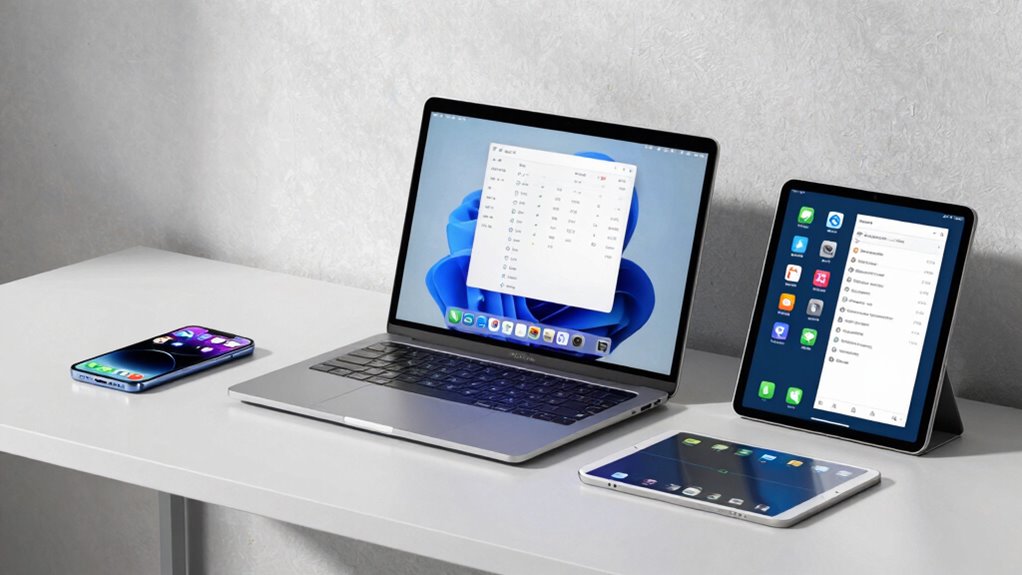

To organize your files across your phone, laptop, and tablet, use cloud storage services like Google Drive or OneDrive to sync and access files seamlessly. Create clear folder structures with descriptive names and consistent formats, and regularly delete duplicates or outdated files. Use search functions to find what you need fast, and set routines for backup and review to keep everything tidy. If you want more tips on mastering your digital workspace, keep exploring what’s possible.

Get the latest gadgets delivered free — and shop member deals
- Fast, free delivery on millions of items
- Access to Prime Big Deal Days deals on October 6–7
- Prime Video, Amazon Music and more included
Key Takeaways
- Use cloud storage services like Google Drive or OneDrive for seamless access across devices.
- Establish a consistent file naming system with clear, descriptive titles and version indicators.
- Create a hierarchical folder structure with main categories and subfolders for easy navigation.
- Regularly search, review, and tidy files to maintain organization and eliminate duplicates.
- Schedule routine backups and updates to ensure files are current and properly synchronized.
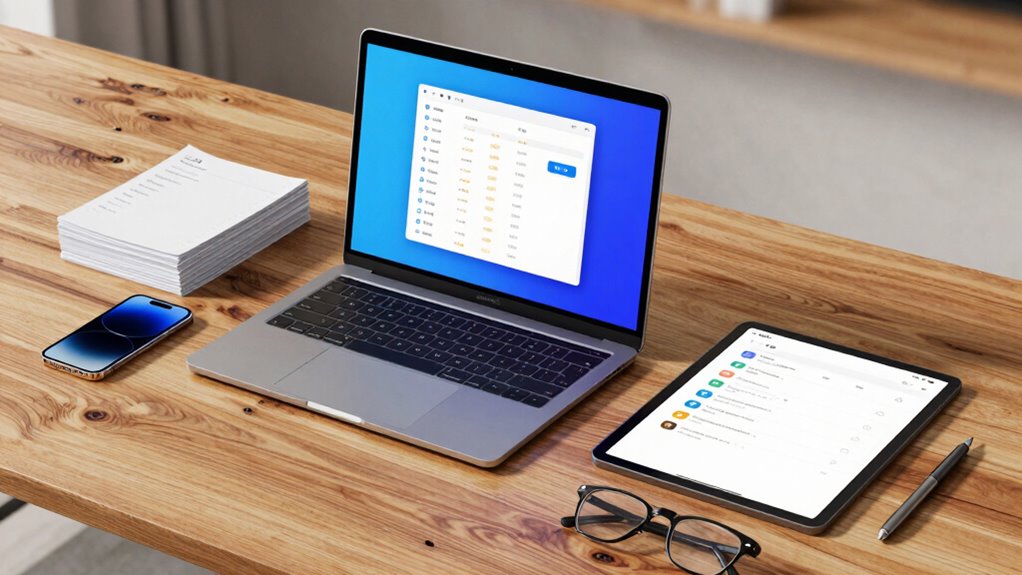
Keeping your files organized across your phone, laptop, and tablet can seem challenging, but it’s essential for staying productive and saving time. With multiple devices involved, the key is to create a system that’s consistent and easy to follow. Cloud storage becomes your best ally here, allowing you to sync files seamlessly across all your devices. When you store files in the cloud, you avoid the hassle of transferring files manually or losing track of where you saved them. Choose a reliable service like Google Drive, Dropbox, or OneDrive, and make a habit of saving all your documents, images, and work files there. This way, no matter which device you’re on, your files are accessible and up-to-date.
Use cloud storage to sync and access your files effortlessly across all devices.
Next, focus on establishing a solid file naming system. A clear, descriptive naming convention helps you locate documents quickly without having to open multiple files. For example, include dates, project names, or version numbers in the file name. Instead of vague titles like “Document1,” opt for something specific like “Q2_Sales_Report_2023_v2.” Consistency is essential—stick to the same format for all files within a category. This reduces confusion and makes sorting easier. When combined with cloud storage, effective file naming saves you from wasting time searching through folders or scrolling endlessly to find the right version.
Organizing your files into well-structured folders is equally important. Create main categories such as Work, Personal, or Projects, then add subfolders for specific topics or tasks. This hierarchical approach keeps everything neat and prevents clutter. For example, under Work, you might have subfolders for Reports, Presentations, and Meeting Notes. Keeping your folder structure consistent across devices ensures that you always know where to look. Regularly delete outdated or duplicate files to prevent buildup. Use your cloud storage’s search function, which often allows keyword searches within documents, further speeding up your retrieval process. Additionally, understanding file management principles can further enhance your organization efforts.
Finally, develop a routine for backing up and reviewing your files. Set weekly or monthly reminders to tidy up your folders, update file names, and ensure all important documents are synced properly. This habit helps keep your digital workspace streamlined and prevents losing essential files amidst clutter. By combining reliable cloud storage, a disciplined file naming system, and organized folder structures, you create a robust framework that makes managing files across your phone, laptop, and tablet straightforward and efficient. Staying consistent with these practices turns what seems like a formidable task into a simple, manageable routine.
cloud storage service for file synchronization
As an affiliate, we earn on qualifying purchases.
As an affiliate, we earn on qualifying purchases.
Frequently Asked Questions
How Do I Sync Files Across Different Devices Automatically?
You can sync files across your devices automatically by using cloud storage services like Dropbox, Google Drive, or OneDrive. These platforms sync files in real-time and keep everything updated across your phone, laptop, and tablet. Enable automatic backups within these apps so your files are always secure and current. Make sure your devices are connected to the internet, and the apps run in the background for seamless, automatic synchronization.
What Apps Are Best for Cross-Platform File Organization?
You should try cloud storage apps like Dropbox, Google Drive, or OneDrive—they work seamlessly across your phone, laptop, and tablet. These apps help you stay organized with consistent file naming and automatic syncing. Use clear, descriptive names for your files to find them easily across devices. This way, your files stay updated, accessible, and organized, whether you’re on your phone, laptop, or tablet, without hassle.
How Can I Secure My Files on Multiple Devices?
You can secure your files on multiple devices by using strong, unique passwords managed through a reliable password management app. Make sure your files are stored in the cloud with robust cloud security features, including encryption and two-factor authentication. Regularly update your software to patch vulnerabilities and stay cautious of suspicious links or downloads. These steps help protect your data across all devices, keeping your files safe and accessible only to you.
What Is the Best Way to Delete Duplicate Files?
To delete duplicate files efficiently, start by using a file management app that scans your devices for duplicates. Use clear file naming conventions to identify similar files easily. Once duplicates are found, review them carefully before deleting to avoid losing important data. This process helps with storage optimization, freeing up space on your phone, laptop, and tablet, making your device management smoother and more organized.
How Do I Organize Files for Shared Access?
You can organize files for shared access by using cloud storage solutions like Google Drive or Dropbox, which automatically sync your files across devices. Implement folder hierarchy strategies to keep everything tidy, creating clear categories and subfolders. This way, everyone involved can easily find and collaborate on files. Regularly review shared folders to maintain organization, ensuring your team stays productive and connected without confusion or misplaced documents.
file organization software for Windows and Mac
As an affiliate, we earn on qualifying purchases.
As an affiliate, we earn on qualifying purchases.
Conclusion
By embracing these organization tips, you create a harmonious digital space where everything has its place. Think of your devices as a well-tended garden, each file a vibrant bloom, easily found and enjoyed. With a little effort, you’ll transform chaos into calm, turning your devices into reliable allies that serve your needs effortlessly. In this beautifully ordered world, your digital life flows smoothly, leaving you more time to enjoy what truly matters.
file naming convention templates
As an affiliate, we earn on qualifying purchases.
As an affiliate, we earn on qualifying purchases.
As an affiliate, we earn on qualifying purchases.
Fall Picks
fall essentials
As an affiliate, we earn on qualifying purchases.